Deactivation of MOPs
Do the following steps to deactivate the MOP:
- Navigate to the Sales Channel > Setting > Cart & Payments > Payments.
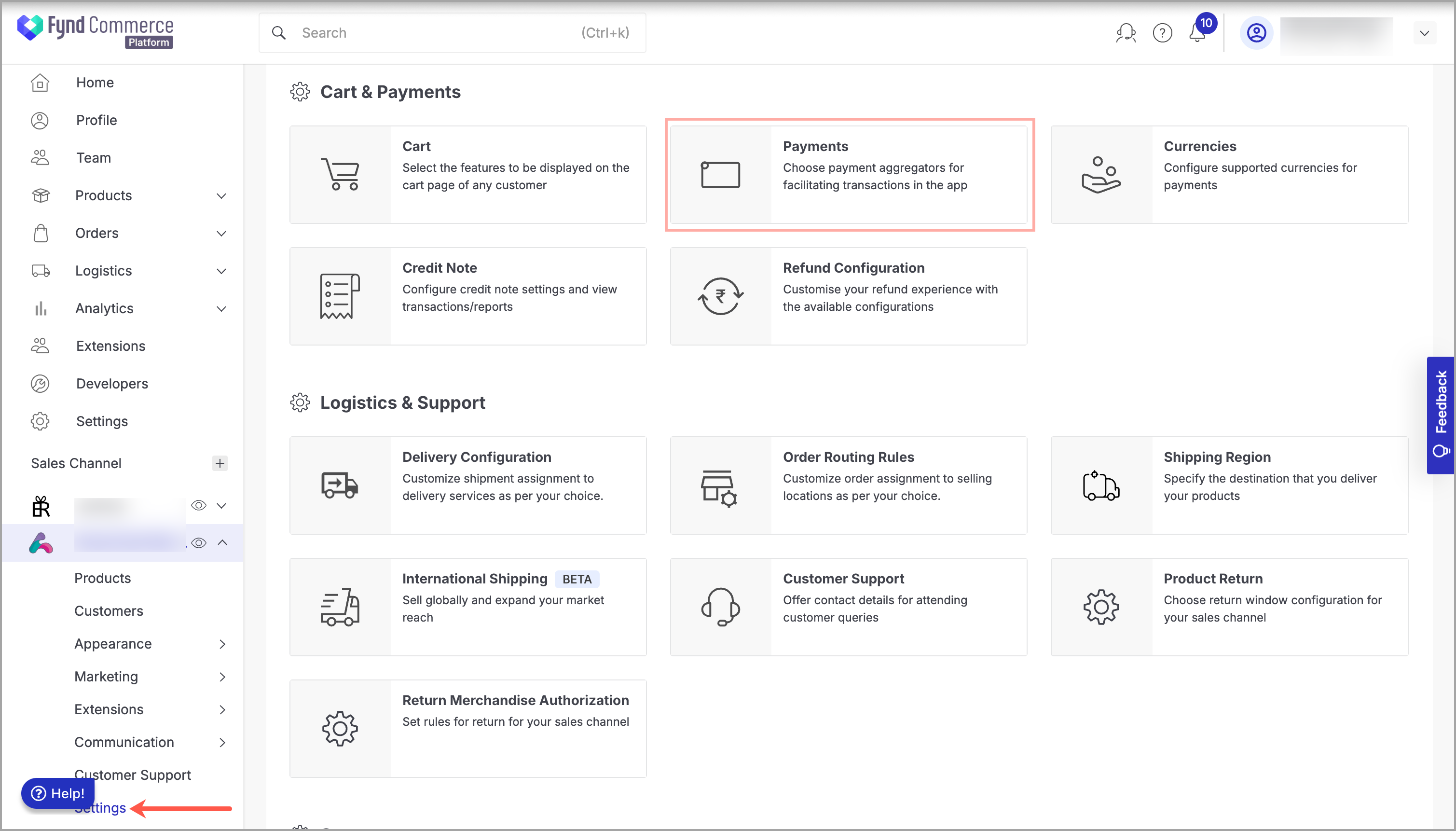
Figure 1: Sales Channel Setting - Click General Setting.
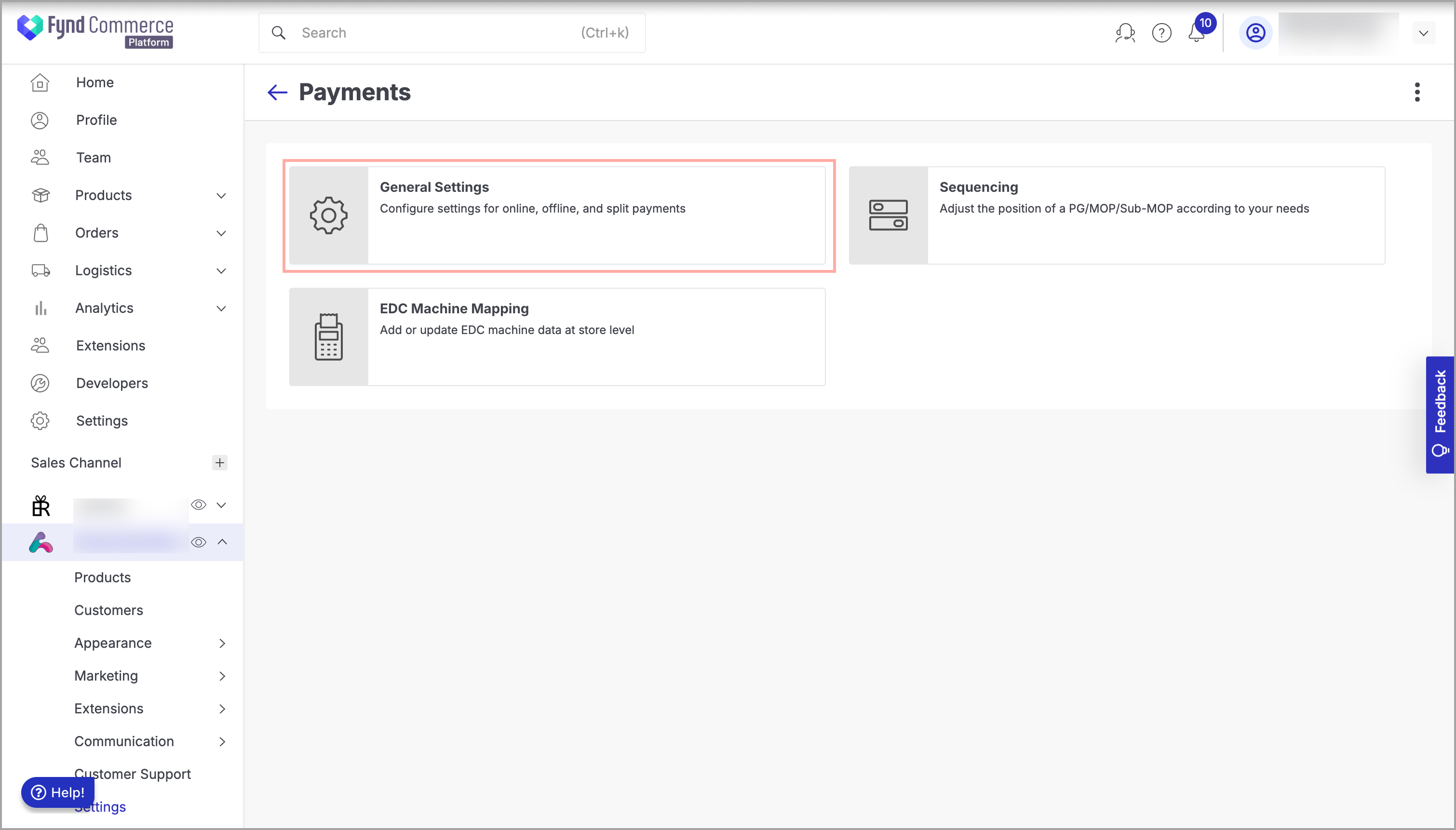
Figure 2: Payments Page - Click Razorpay.
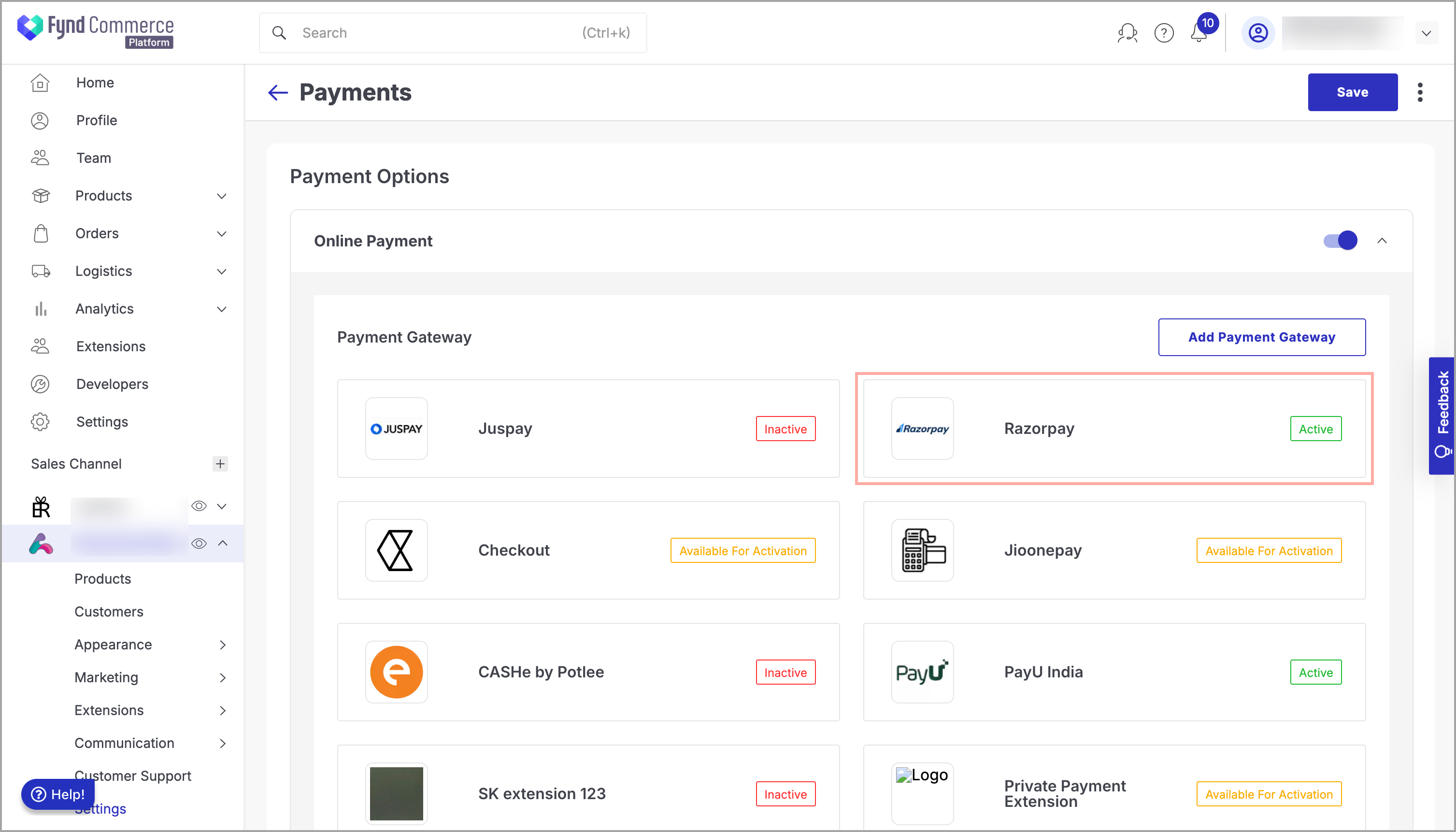
Figure 3: Clicking Razorpay - Choose the desired business unit (Storefront or POS) and device (Website, iOS, Android or Payment link).
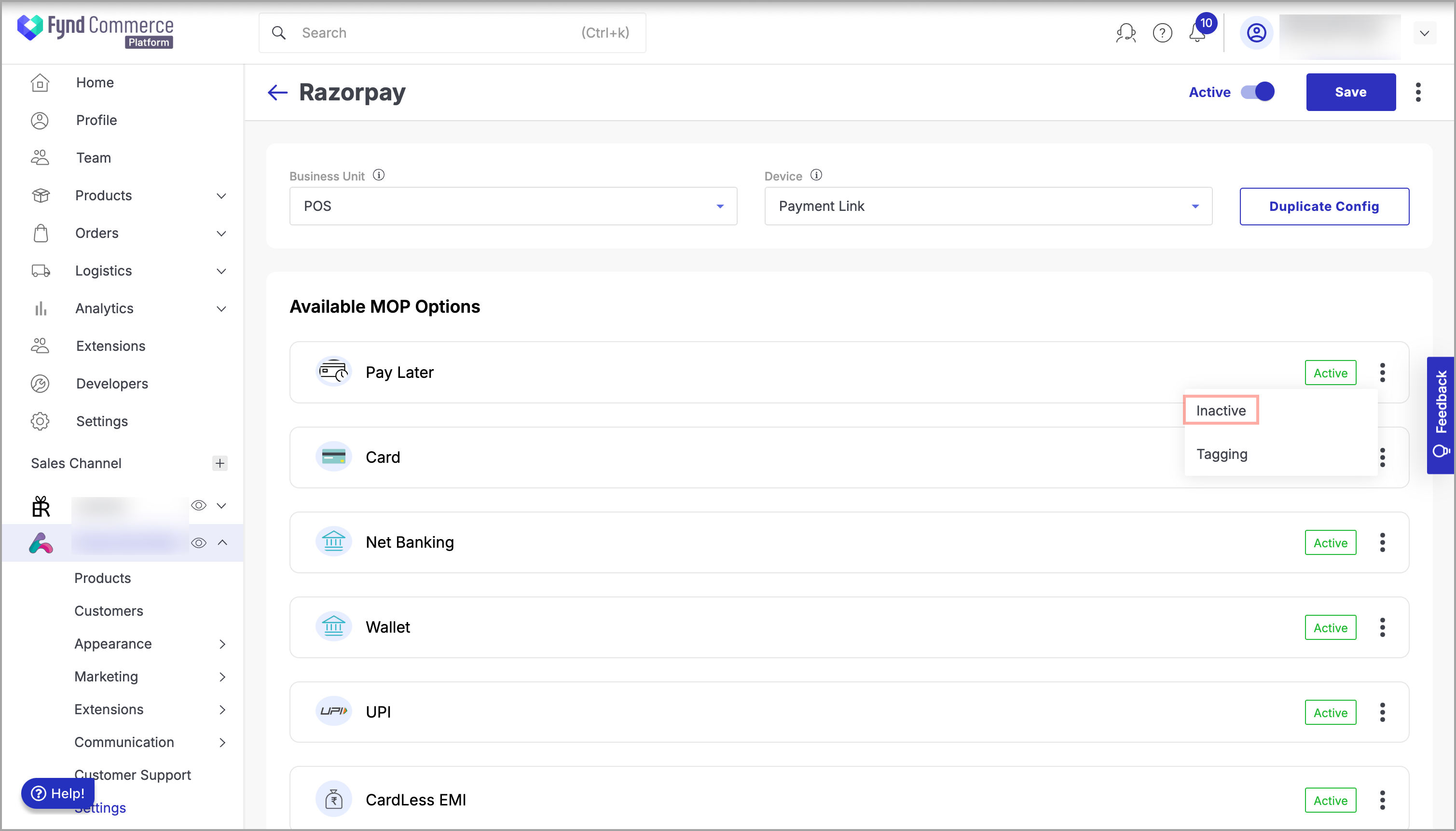
Figure 4: Choosing Business Unit and Device - Navigate to the required MOP that you need to deactivate (such as card, net banking, and UPI).
- Click three dots to the right of MOP.
- Click Inactive.
- Click Save. You will see a success message when the MOP is successfully deactivated.